SVS Tools pro Ansys Fluent
English version below SVS Tools for Ansys Fluent
Nadstavba od výpočtářů pro výpočtáře
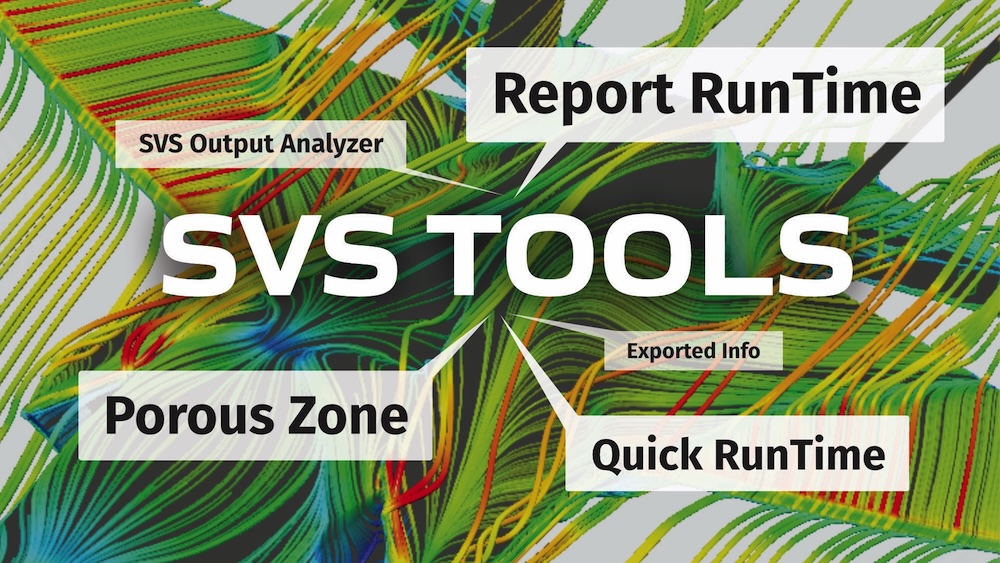
SVS Tools je nadstavba pro Ansys Fluent. Zprostředkovává nástroje, které vyvinuli a denně používají naši vlastní výpočtáři v SVS FEM. Vše je dostupné z ribonu Fluentu. Po instalaci se ve Fluentu objeví karta SVS Tools se třemi oblastmi:
- měření a dokumentování toho, co váš hardware skutečně zvládne,
- nastavení porézních zón s automatickým dopočtem jejich parametrů,
- vyhodnocení výstupů řešiče (*.out soubory) v samostatné desktopové aplikaci.

Není nutné nic nastavovat — instalátor si sám najde Python z instalace Ansysu, nepotřebuje práva administrátora a instaluje vše pouze pro aktuálního uživatele.
Zjistěte, co váš hardware skutečně umí
Nákup, dimenzování nebo přejímka CFD hardwaru se neopírá o konkrétní hodnoty rychlostí a výkonů. Tento přístup jsme si dali za cíl změnit. Nástroj Report Run Time dokáže vyčíslit rychlost vašeho hardware a je možné následně konkrétně porovnávat mezi jednotlivými počítači. Jedno kliknutí zapíše kompletní report o běhu do transcriptu Fluentu a na jeho konci vypíše informaci o MIUPS — Million Iteration-Updates Per Second, tedy počet iterací za sekundu pro 1 milion buněk:
MIUPS = (buňky sítě × iterace) / čas v sekundách / 1 000 000
(Vyšší hodnota je lepší = více iterací za stejný čas)
Protože je hodnota normovaná velikostí sítě, je MIUPS porovnatelný mezi různými case: podle jednoho čísla srovnáte pracovní stanici s výpočetním uzlem, 8 procesů se 64 nebo jednu verzi Fluentu s následující. Report vypisuje tři varianty a už rozdíl mezi nimi něco vypovídá:
- MIUPS (solver) — odvozený z Performance Timeru samotného Fluentu, tedy propustnost vlastního řešiče.
- MIUPS per process (solver) — propustnost řešiče dělená počtem výpočetních procesů. Právě tato hodnota ukazuje, jestli se přidávání jader ještě vyplácí.
- MIUPS (end-to-end) — odvozený z celkového času simulace, tedy včetně všeho, co se děje mimo řešič. Velký rozdíl proti hodnotě pro řešič ukazuje na I/O nebo režii, ne na výpočetní výkon.
Vedle výsledku se vypisují všechny vstupy — počet buněk sítě, počet skutečně hodnocených iterací, čas na iteraci pro řešič i end-to-end, oba celkové časy a počet výpočetních procesů — takže každou hodnotu lze z transcriptu ručně přepočítat. Nic se neodhaduje ani neextrapoluje: pokud některou hodnotu nelze z reportů Fluentu přečíst, na řádku je not available, ne dohad.
Typické použití:
- máme ve firmě více počítačů starších i novějších a chceme zhodnotit jaký počítač je o kolik rychlejší a kde se vyplatí počítat,
- uvažujeme o nákup nových počítačů a chceme určit o kolik budou rychlejší, než stávající počítače.
Report RunTime, Quick RunTime a Custom Exit
Tři úrovně podrobnosti podle toho, co potřebujete:
- Report RunTime — úplný obraz. Souhrn nastavení case a okrajové podmínky, velikost sítě a využití paměti, model CPU, moduly RAM včetně výrobce, part number, rychlosti a kapacity, modely disků, statistiky GPGPU, statistiky procesů, systémové a I/O časování, počet výpočetních procesů a blok benchmarku MIUPS.
- Quick RunTime — jen časování a statistiky procesů, pro rychlý pohled během výpočtu. Záměrně vynechává dotaz na velikost sítě, který je na velké síti pomalý.
- Custom Exit — plný report vytvořený automaticky při ukončení Fluentu, takže záznam existuje i tehdy, když si na něj nikdo nevzpomněl. Je k dispozici na ribbonu i v menu File.
Vše se vypisuje do standardního transcriptu Fluentu, takže výpisy jsou k dispozici i po ukončení Fluentu a je to bez úprav přiložit k požadavku na porovnání vašeho počítače s novým HW. Tlačítko Exported Info otevře dialog s výčtem toho, co se do transcriptu zapíše. Bez vašeho vědomí se nic z vašeho počítače neodesílá. Jedinou informaci, kterou obdržíme je, co nám sami pošlete e-mailem, nebo na hotline po přiložení transcriptu z Fluentu (fluent*.trn). Funkce reportů fungují i ve Fluentu na Linuxu. Pro instalaci na Linuxu nás prosím kontaktujte na hotline@svsfem.cz. Postup se liší od instalace na Windows.
Výpočty koeficientů porézní zóny
Nastavení porézní zóny ve Fluentu vyžaduje dopočítat koeficienty pro parametry zóny. Tlačítko Porous Zone — nově přidaná utilita PorZo — tyto koeficienty dopočítá za vás:
- SVS Tools načte zóny přímo z otevřeného case, včetně jejich typů: wall, porous jump, fluid a solid.
- PorZo se otevře už s vypsanými zónami a vy doplníte data porézní zóny.
- Po potvrzení se nastavení automaticky aplikuje zpět do Fluentu jako příkazy okrajových podmínek. Žádný export, žádné kopírování, žádné druhé kliknutí.
Dokud nepotvrdíte, neaplikuje se nic: zavřením PorZo bez potvrzení se akce chápe jako čisté zrušení a case zůstane přesně v původním stavu. Přednastavené filtry, které si vytvoříte, zůstávají vašimi daty a zůstanou i po reinstalaci SVS Tools — často používané nastavení tedy stačí zadat jednou.
PorZo běží na Windows a potřebuje bezplatný běhový modul Microsoft .NET 8 (x64). Instalátor jeho přítomnost kontroluje a upozorní, pokud chybí.
SVS Output Analyzer
Jestliže si zapisujete monitorovací soubory Fluentu (*.out) do souborů potom vám možná chyběl nástroj pro jednoduché vykreslení grafů z těchto výstupů. SVS Output Analyzer je desktopová aplikace právě na zobrazování křivkových dat (nejen) z Fluentu. Dokáže:
- porovnat několik monitorů současně,
- posoudit, jestli řešení skutečně zkonvergovalo,
- vytvořit grafy rovnou použitelné do zprávy.
Otevře se tam, kde pracujete. Při spuštění z ribbonu startuje aplikace s už načtenou složkou, kde máte všechna svoje data z aktuální simulace. Zároveň je to samostatná aplikace se zástupcem v nabídce Start i na ploše, pro práci s výsledky mimo Fluent.
Formáty. Monitorovací soubory Fluentu .out, včetně sloučení několika monitorů do jedné datové sady; výstupy z Flownexu; obecné CSV; a soubory Ansys CFX .res na strojích, kde je nainstalován Ansys CFX.
Grafy. Jednotlivé grafy se rozkládají do konfigurovatelné mřížky panelů. Pomocí kurzoru je možné odečítat hodnoty z křivek a porovnávat výpočty. Automatická obnova drží grafy aktuální i během běžícího výpočtu. Popisy os, fonty, škály a rozvržení se ukládají jako nastavení, takže se vaše preferovaná podoba nemění při každém spuštění, a každý graf lze zkopírovat do schránky nebo uložit jako obrázek do zprávy či e-mailu.
Analýza. Statistiky nad daty — průměr, peak-to-peak, derivace a hledání extrémů — pro otázky konvergence a oscilací, na které samotný monitorovací graf nestačí. FFT převede signál (například sílu) do frekvenčního spektra, což je způsob, jak hodnotit data ve frekvenční oblasti. Vestavěný kalkulátor vyhodnotí vaše vlastní výrazy nad načtenými řadami, takže z odvozené veličiny — rozdílu, poměru, koeficientu — se stane prostě další křivka v grafu.
Sessions. Hotové nastavení načtených souborů, rozvržení a odvozených veličin lze uložit a znovu otevřít, poslední sessions jsou obnovitelné na jedno kliknutí. Vrátit se ke case po měsíci tedy neznamená stavět analýzu znovu.
Instalace a nároky na IT
SVS Tools se dodává jako jediné instalační EXE pro Windows a je záměrně nenáročný:
- Bez práv administrátora. Instaluje se pro jednoho uživatele, do jeho vlastní složky aplikací.
- Žádný Python k údržbě. SVS Tools používá interpret CPython, který je součástí vaší instalace Ansysu. Není co instalovat, aktualizovat ani udržovat kompatibilní.
- Jakákoli verze Ansysu, včetně budoucích. Instalátor najde na stroji všechny nainstalované verze Ansysu a vybere nejnovější, která má použitelný interpret; při potřebě ustoupí ke starší instalaci. Není třeba udržovat seznam verzí — nové vydání Ansysu se najde automaticky.
- Vaše stávající úpravy Fluentu jsou v bezpečí. Pokud už máte vlastní soubor .fluent, instalátor ho před instalací ribbonu zazálohuje a při odinstalaci SVS Tools vrátí zpět.
- Malá a předvídatelná stopa. Soubory se zapisují pouze do vašeho uživatelského profilu a do lokálních dat aplikací; z registru se pouze čte, kvůli nalezení Ansysu a běhového modulu .NET. Odinstalace odstraní, co bylo nainstalováno, včetně souboru ribbonu.
Požadavky
Ansys Fluent s interpretem CPython dodávaným v instalaci Ansysu (u aktuálních verzí standardní).
Windows pro instalátor, PorZo a SVS Output Analyzer. Funkce reportů o běhu fungují i ve Fluentu na Linuxu.
Běhový modul Microsoft .NET 8 (x64) — pouze pro PorZo, bezplatně. Bez něj fungují všechny ostatní části SVS Tools.
Instalace Ansys CFX — pouze pokud chcete v SVS Output Analyzer číst soubory CFX .res.
Máte zájem o SVS Tools pro Ansys Fluent?
Pro instalaci na Linuxu nás prosím kontaktujte na hotline@svsfem.cz.
Technická podpora
hotline@svsfem.cz | +420 543 254 555.
SVS Tools stejně jako další nadstavby pro Ansys vyvíjíme a podporuje my v SVS FEM.
Jsme autorizovaným Ansys partnerem pro Česko a Slovensko.
English version / Czech version
SVS Tools for Ansys Fluent
SVS Tools is an extension for Ansys Fluent developed by SVS FEM s.r.o. It provides tools used daily by our own simulation engineers. Everything is available from the Fluent ribbon. After installation, a SVS Tools tab appears in Fluent with three areas:
- measuring and documenting what your hardware can actually achieve,
- setting up porous zones with automatic calculation of their parameters,
- analyzing solver output (`*.out` files) in a standalone desktop application.
No configuration is required — the installer automatically locates the Python interpreter included with the Ansys installation, does not require administrator rights, and installs everything only for the current user.
Find out what your hardware can really do
The purchase, sizing, or acceptance testing of CFD hardware should not be based on isolated speed and performance figures. We set out to change this approach. The Report RunTime tool can quantify the speed of your hardware, allowing you to make specific comparisons between individual computers. With a single click, it writes a complete runtime report to the Fluent transcript and displays an MIUPS value at the end — Million Iteration-Updates Per Second, i.e. the number of iterations per second for one million cells:
MIUPS = (mesh cells × iterations) / time in seconds / 1,000,000
(A higher value is better = more iterations in the same amount of time.)
Because the value is normalized by mesh size, MIUPS can be compared across different cases: using a single number, you can compare a workstation with a compute node, 8 processes with 64, or one Fluent version with the next. The report displays three variants, and the difference between them is already informative:
- MIUPS (solver) — derived from Fluent’s Performance Timer, representing the throughput of the solver itself.
- MIUPS per process (solver) — solver throughput divided by the number of compute processes. This value shows whether adding more cores is still worthwhile.
- MIUPS (end-to-end) — derived from the total simulation time, including everything that happens outside the solver. A large difference compared with the solver value indicates I/O or overhead rather than computational performance.
Alongside the result, all input values are displayed — the number of mesh cells, the number of iterations actually evaluated, the time per iteration for both the solver and the end-to-end calculation, both total times, and the number of compute processes — so every value can be recalculated manually from the transcript. Nothing is estimated or extrapolated: if a value cannot be read from Fluent’s reports, the line shows not available rather than a guess.
Typical uses:
- We have multiple older and newer computers in the company and want to assess how much faster each computer is and where it is worth running computations.
- We are considering purchasing new computers and want to determine how much faster they will be than our existing computers.
Report RunTime, Quick RunTime and Custom Exit
Three levels of detail, depending on what you need:
- Report RunTime — the complete picture. A summary of the case settings and boundary conditions, mesh size and memory usage, CPU model, RAM modules including manufacturer, part number, speed, and capacity, disk models, GPGPU statistics, process statistics, system and I/O timing, the number of compute processes, and the MIUPS benchmark block.
- Quick RunTime — timing and process statistics only, for a quick overview during a computation. It deliberately omits the mesh-size query, which is slow on large meshes.
- Custom Exit — a full report generated automatically when Fluent exits, so a record exists even if nobody remembered to create one. It is available both on the ribbon and in the File menu.
Everything is written to Fluent’s standard transcript, so the output remains available even after Fluent is closed, and you can attach it directly to a request to compare your computer with new hardware. The Exported Info button opens a dialog listing everything that will be written to the transcript. Nothing is sent from your computer without your knowledge. The only information we receive is what you send us yourself by email or to the hotline when you attach the Fluent transcript (fluent*.trn). The reporting features also work in Fluent on Linux. Please contact us for installation on Linux here hotline@svsfem.cz. The procedure differs from installation on Windows.
Porous Zones in a Form, Not in the TUI
Setting up a porous zone in Fluent requires calculating the coefficients for the zone parameters. The Porous Zone button — the newly added PorZo utility — calculates these coefficients for you:
- SVS Tools loads the zones directly from the open case, including their types: wall, porous jump, fluid, and solid.
- PorZo opens with the zones already listed, and you enter the porous-zone data.
- After confirmation, the settings are automatically applied back to Fluent as boundary-condition commands. No export, no copying, and no second round of clicking.
Nothing is applied until you confirm it: closing PorZo without confirmation is treated as a simple cancellation, and the case remains exactly as it was. Preset filters that you create remain your data and will also remain after reinstalling SVS Tools — frequently used settings therefore only need to be entered once.
PorZo runs on Windows and requires the free Microsoft .NET 8 Runtime (x64). The installer checks whether it is present and warns you if it is missing.
SVS Output Analyzer
If you save Fluent monitor files (*.out) to disk, you may have been missing a tool for easily plotting graphs from these outputs. SVS Output Analyzer is a desktop application designed to display curve data, not only from Fluent. It can:
- compare several monitors simultaneously,
- assess whether the solution has actually converged,
- create graphs that can be used directly in a report.
It opens where you work. When launched from the ribbon, the application starts with the folder already loaded that contains all your data from the current simulation. At the same time, it is a standalone application with a shortcut in the Start menu and on the desktop, for working with results outside Fluent.
Formats. Fluent monitor files (.out), including merging several monitors into a single dataset; Flownex output; generic CSV files; and Ansys CFX .res files on machines where Ansys CFX is installed.
Graphs. Individual graphs are arranged in a configurable panel grid. You can use the cursor to read values from curves and compare computations. Automatic refresh keeps the graphs up to date even while a computation is running. Axis labels, fonts, scales, and layouts are saved as settings, so your preferred appearance does not change every time you start the application. Each graph can be copied to the clipboard or saved as an image for use in a report or email.
Analysis. Statistics calculated from the data — average, peak-to-peak value, derivatives, and extrema detection — help answer questions about convergence and oscillations that a monitoring graph alone cannot resolve. FFT converts a signal, such as a force, into a frequency spectrum, providing a way to evaluate data in the frequency domain. The built-in calculator evaluates your own expressions over the loaded series, so a derived quantity — a difference, ratio, or coefficient — simply becomes another curve in the graph.
Sessions. Ready-made configurations of loaded files, layouts, and derived quantities can be saved and reopened; recent sessions can be restored with a single click. Returning to a case after a month therefore does not mean rebuilding the analysis from scratch.
Installation and IT Requirements
SVS Tools is supplied as a single Windows installation EXE and is deliberately lightweight:
- No administrator rights. It is installed for a single user, in that user’s own application folder.
- No Python to maintain. SVS Tools uses the CPython interpreter included with your Ansys installation. There is nothing to install, update, or keep compatible.
- Any Ansys version, including future versions. The installer finds all Ansys versions installed on the machine and selects the newest one with a usable interpreter; if necessary, it falls back to an older installation. There is no need to maintain a version list — new Ansys releases are detected automatically.
- Your existing Fluent customizations are safe. If you already have your own .fluent file, the installer backs it up before installing the ribbon and restores it when SVS Tools is uninstalled.
- A small, predictable footprint. Files are written only to your user profile and local application data; the registry is only read to locate Ansys and the .NET Runtime. Uninstallation removes everything that was installed, including the ribbon file.
Requirements
Ansys Fluent with the CPython interpreter included in the Ansys installation (standard in current versions).
Windows for the installer, PorZo, and SVS Output Analyzer. The runtime reporting features also work in Fluent on Linux.
Microsoft .NET 8 Runtime (x64) — only for PorZo, and available free of charge. All other parts of SVS Tools work without it.
Ansys CFX installation — only if you want to read CFX .res files in SVS Output Analyzer.
Interested in SVS Tools for Ansys Fluent?
For installation on Linux, please contact us at hotline@svsfem.cz.
Technical support
hotline@svsfem.cz | +420 543 254 555
SVS Tools is developed and supported by SVS FEM s.r.o., an Authorized Ansys Channel Partner for Czech Republic and Slovakia.